









Dataset Catalogs
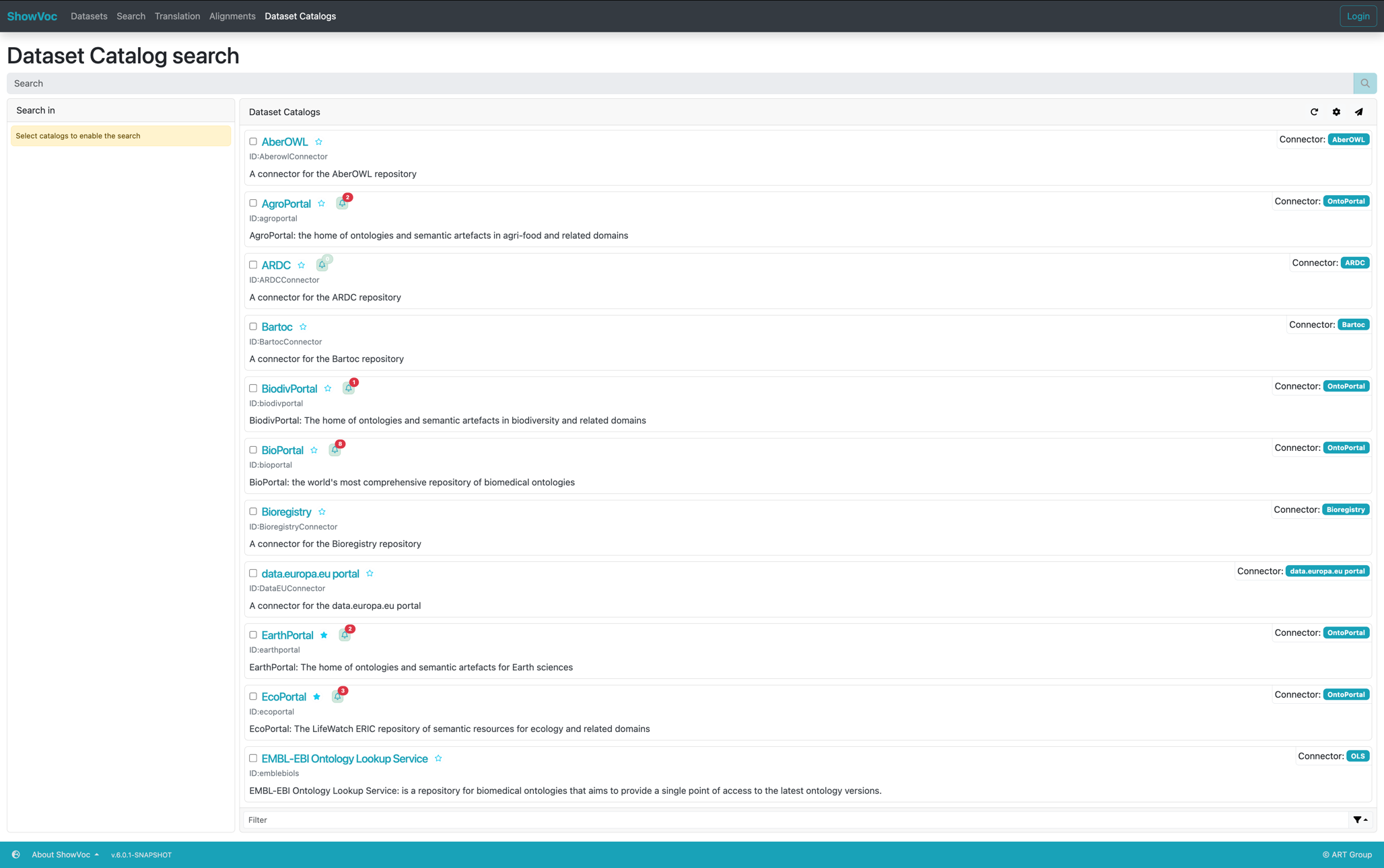
The Dataset Catalogs page provides access to all remote repositories (dataset catalogs) that can be queried through ShowVoc. Each dataset catalog corresponds to a built-in connector that can retrieve semantic datasets from external sources.
User Roles and Access to Dataset Catalogs
The Dataset Catalogs page is shared between four user roles within the ShowVoc environment: Visitor users (anonymous), Registered users (authenticated), Administrator users, and SuperUsers. Although they access the same interface, the visibility of certain actions and the level of interaction depend on their role and on the system configuration.
Some functionalities are common to all users, such as browsing available catalogs, performing searches, and viewing search results. These shared features allow every user to explore and query external dataset repositories in a consistent and user-friendly way.
User scope: All users
- Dataset catalogs – View the list of available dataset catalogs and read their descriptions.
- Performing a search – Perform keyword-based searches across the selected catalogs.
- Search Result – View and explore search results retrieved from external repositories.
- Discovered New Datasets – Displays a dialog listing newly discovered datasets for the corresponding catalog, identified during the latest crawling or synchronization process.
User scope: Users (Visitor and Registered)
- Dataset Contribution Request – Allows users to suggest the inclusion of a dataset retrieved from an external catalog into the ShowVoc managed repositories.
- Dataset Catalog Contribution Request – Enables users to propose the integration of a new external dataset catalog by submitting a structured suggestion form.
User scope: SuperUser
- Create Dataset Can create a new dataset internally within the ShowVoc starting from an existing dataset retrieved from a Dataset Catalog,
- Dataset Catalog Contribution Request – Enables users to propose the integration of a new external dataset catalog by submitting a structured suggestion form.
User scope: Administrator users
- Bootstrap factory Dataset Catalogs – allows administrators to restore the built-in dataset catalog connectors that are natively provided by ShowVoc. This function can be used to reinitialize the default configuration in case of accidental deletion or system reset.
- Dataset catalogs management – enables administrators to add new dataset catalogs, modify existing ones, or remove obsolete entries. These operations allow full control over the list of available catalogs integrated within the ShowVoc environment.
- Discovery – New Dataset Crawling – allows administrators to start a new crawling process to detect and register newly available datasets within external catalogs. The crawl can be executed either on a single catalog or across all configured catalogs simultaneously.
- Datasets management – administrators can create a new dataset within ShowVoc starting from an existing dataset retrieved from an external catalog. Additionally, they can update an already existing dataset in ShowVoc by importing a newer version detected in a dataset catalog.
Administrator users also have the capability to enable or disable the Dataset Catalogs page itself and to define which user groups can access it. These permissions can be managed through the system configuration panel, where administrators control visibility and access according to organizational policies.
For detailed information about page-level access management, refer to the System Configuration section.
This role-based structure ensures a clear separation of responsibilities: users (Visitor and Registered) can explore and suggest datasets, SuperUsers can additionally create new datasets or propose new external catalogs, while administrators manage configuration, catalog maintenance, and dataset validation workflows.
Built-in Dataset Catalog Connectors
ShowVoc does not depend on a single catalog. Instead, it relies on the extension point DatasetCatalogConnector to support multiple external repositories. A set of built-in connectors is provided by default and can be enabled or disabled by the user from this page.
The following table lists all built-in dataset catalog connectors currently available in ShowVoc.
| Catalog Name | Description | Connector Type | ID |
|---|---|---|---|
| AberOWL | Platform for ontology reasoning and query answering across biomedical ontologies. | AberowlConnector | AberowlConnector |
| AgroPortal | Repository for ontologies and semantic artefacts in agri-food and related domains. | OntoPortalConnector | agroportal |
| AgroPortal | Repository for ontologies and semantic artefacts in agri-food and related domains. | MODConnector | mod-lirmm-stageportal |
| ARDC | Australian Research Data Commons catalog for research data and vocabularies. | ARDCConnector | ARDCConnector |
| Bartoc | Registry of thesauri, ontologies, and classifications (KOS). | BartocConnector | BartocConnector |
| BiodivPortal | Repository of ontologies and vocabularies related to biodiversity. | OntoPortalConnector | biodivportal |
| BioPortal | The most comprehensive repository of biomedical ontologies. | OntoPortalConnector | bioportal |
| Bioregistry | Open registry integrating identifiers and metadata for biomedical resources. | BioregistryConnector | BioregistryConnector |
| data.europa.eu | Official European data portal aggregating open dataset metadata from international, EU, and national sources. | DataEUConnector | DataEUConnector |
| EarthPortal | Ontology repository for Earth and geosciences. | OntoPortalConnector | earthportal |
| EcoPortal | LifeWatch ERIC repository of semantic resources for ecology and environmental domains. | OntoPortalConnector | ecoportal |
| EMBL-EBI Ontology Lookup Service | Biomedical ontology service offering unified access to multiple ontology versions. | OLSConnector | emblebiols |
| GFBio | German Federation for Biological Data catalog of terminologies and ontologies. | GFBioConnector | GFBioConnector |
| I-Adopt | Registry for interoperable variable descriptions supporting FAIR data principles. | IAdoptConnector | IAdoptConnector |
| IndustryPortal | Ontology repository for industrial and manufacturing domains. | OntoPortalConnector | industryportal |
| LOD Cloud | Metadata repository covering datasets interlinked using Linked Data principles. | LODCloudConnector | LODCloudConnector |
| Loterre | CNRS repository of thesauri and terminologies for humanities and social sciences. | LoterreConnector | LoterreConnector |
| Linked Open Vocabularies (LOV) | Curated catalog of vocabularies, schemas, and ontologies in the Linked Data ecosystem. | LOVConnector | LOVConnector |
| MatPortal | Ontology repository for materials science vocabularies and ontologies. | OntoPortalConnector | matportal |
| MedPortal | Peking Union Medical College semantic artifact catalog for medical and health-related domains. | OntoPortalConnector | medportal |
| MMI ORR | Marine Metadata Interoperability Ontology Registry and Repository. | MMIORRConnector | MMIORRConnector |
| NERC | Natural Environment Research Council controlled vocabulary service for environmental data. | NERCConnector | NERCConnector |
| NERC | Natural Environment Research Council controlled vocabulary service for environmental data. | MODConnector | mod-nerc |
| OBOFoundry | Collection of interoperable ontologies for biological and biomedical domains. | OBOFoundryConnector | OBOFoundryConnector |
| Ontobee | Linked data server providing ontology term dereferencing and browsing for OBO ontologies. | OntobeeConnector | OntobeeConnector |
| ShowVoc EUR-OP | Corporate instance of ShowVoc supporting EU institutions and agencies in publishing semantic assets. | ShowVoc | europ |
| TechnoPortal | Ontology repository for engineering and technology domains. | OntoPortalConnector | technoportal |
| TERN | Australian Terrestrial Ecosystem Research Network catalog of terminologies and datasets. | TERNConnector | TERNConnector |
| TIB Terminology Service | Terminology platform by the Leibniz Information Centre for Science and Technology. | OLSConnector | tib |
| TIB Terminology Service | Terminology platform by the Leibniz Information Centre for Science and Technology. | MODConnector | mod-tib |
The table below lists all built-in dataset catalog connectors available in ShowVoc, together with their Nature and supported Capabilities.
The Nature column indicates whether a connector is of type Singleton or Configurable:
- Singleton – the connector is specifically implemented for a single dataset catalog and cannot be reused for other instances. This usually occurs when the catalog does not rely on a shared technology platform, but instead exposes custom APIs, SPARQL endpoints, or requires dedicated page-scraping logic to retrieve dataset information. Each Singleton connector is therefore unique and directly bound to its target service.
- Configurable – the connector is designed to support multiple instances of the same catalog technology through configuration. This means that a single connector type can be reused for different catalog instances that share a common backend or API structure. For example, the OntoPortalConnector is used for several portals such as AgroPortal, BioPortal, EcoPortal, and IndustryPortal, all of which are based on the same OntoPortal technology. In practice, a new OntoPortal instance can be integrated into ShowVoc simply by providing its configuration parameters, without the need to implement a new connector.
The two rightmost columns indicate whether each connector supports specific capabilities related to dataset monitoring and version management:
- Discovery capability – specifies whether the connector implements a mechanism to detect newly added datasets within the external catalog. Not all catalogs expose such functionality: some APIs do not provide change tracking, and therefore ShowVoc cannot automatically determine when new datasets have been added. When this capability is available, ShowVoc can retrieve and display the list of newly discovered datasets (see section “Discovered New Datasets”).
- Update version capability – indicates that the connector can detect whether a dataset already known in ShowVoc has a newer version available in the catalog. This depends on whether the external service maintains and exposes dataset versioning information. When supported, the connector includes an internal mechanism to identify and compare dataset versions, ensuring that ShowVoc can remain synchronized with the latest releases.
In summary, Configurable connectors represent reusable technologies that can serve multiple catalogs, whereas Singleton connectors are designed for unique, custom implementations. The Discovery and Update Version capabilities provide the system with incremental synchronization and version-tracking functionality, enabling administrators to efficiently manage dataset updates across different external sources.
| Connector Type | Nature | Discovery Capability | Update Version Capability |
|---|---|---|---|
| AberowlConnector | Singleton | ||
| ARDCConnector | Singleton | ✅ | ✅ |
| BartocConnector | Singleton | ||
| BioregistryConnector | Singleton | ||
| DataEUConnector | Singleton | ||
| FairSharingConnector | Configurable | ||
| GFBioConnector | Singleton | ✅ | |
| IAdoptConnector | Singleton | ||
| LODCloudConnector | Singleton | ||
| LOVConnector | Singleton | ✅ | |
| LoterreConnector | Singleton | ||
| MMIORRConnector | Singleton | ✅ | |
| MODConnector | Configurable | ✅ | |
| NERCConnector | Singleton | ✅ | |
| OBOFoundryConnector | Singleton | ||
| OLSConnector | Configurable | ✅ | |
| OntobeeConnector | Singleton | ||
| OntoPortalConnector | Configurable | ✅ | ✅ |
| ShowVoc | Configurable | ||
| TERNConnector | Singleton |
All the connectors listed above are built-in within ShowVoc and require no additional configuration.
Dataset Catalogs View
This section provides a unified interface for searching and exploring dataset repositories connected to the ShowVoc environment. It allows users to enable or disable specific dataset catalogs and perform searches across one or multiple repositories simultaneously.
At the top of the content area, the interface includes:
- A search input field, where users can enter keywords to query the dataset catalogs.
- A “Search in” section, allowing the selection of specific catalogs to include in the search.
- Utility buttons for refreshing the list, opening settings, or suggesting a new dataset catalog.
Below the search controls, the page displays a list of available dataset catalog connectors. Each connector entry consists of:
- A checkbox to enable or disable the catalog for federated searches.
- A star icon to mark the catalog as favorite.
- The connector name and type (e.g., Connector: OntoPortal, Connector: OLS).
- The connector identifier (ID) used internally by ShowVoc.
- A short textual description summarizing the repository’s purpose and domain coverage.
- Optional - Notification icon – with a numeric indicator may appear next to the catalog. This icon shows the number of newly discovered datasets for that specific catalog, as detected during the latest crawl or update process. For further details, refer to the section “Discovered New Datasets.”
At the bottom of the interface, users can find additional options and buttons. When a catalog is enabled (checkbox selected), it becomes part of the set of catalogs that can be used for search operations in ShowVoc.
Search field over catalogs: At the top of the list, a search input allows the user to filter the catalogs by name or keyword. As the user types, the list is restricted to matching entries. Clearing the field restores the full list.
Toolbar actions: A small toolbar above the list provides the following actions:
- Refresh – reloads the catalog list .
- Settings – opens configuration options related to dataset catalogs. Visualization mode: Flat or Folded
“Search In” panel: Above the catalog list, the Search In panel shows the catalogs currently selected for federated searches. When the user enables a catalog from the list, it is added to this panel. Each selected catalog appears as a labeled item. By clicking its remove control, the catalog is removed from the panel and automatically disabled in the list. The Search In panel defines the scope of distributed queries: only the catalogs visible in this panel will be contacted when a search is performed.
Favorites management: By clicking the star icon next to each catalog, users can mark it as a favorite. The “Only favorites” option in the toolbar filters the list to these preferred catalogs, making it easier to focus on the most frequently used repositories.
Persistence of selections: The selection of favorites catalogs is preserved between user sessions. When the user returns to the Dataset Catalogs page, previously favorite catalogs are restored, avoiding the need for repeated configuration.
Performing a search
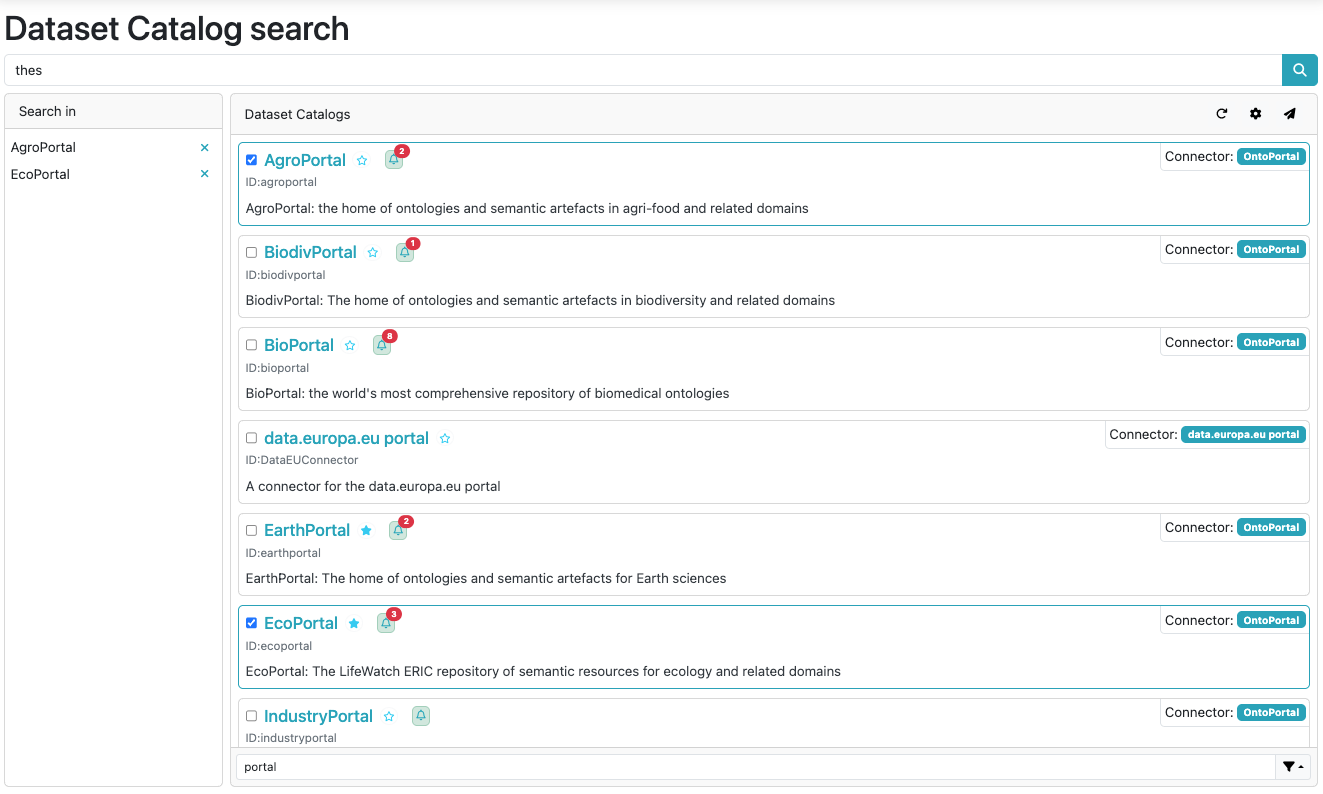
To perform a search, the user must first select one or more dataset catalogs to be queried. Catalogs can be selected by clicking directly on their card or by checking the corresponding checkbox next to each catalog entry. Once the desired catalogs have been selected, the user can enter a keyword in the search bar located at the top of the page.
After typing the keyword, the search can be initiated by clicking the magnifying glass button next to the search field, or by pressing the Enter key on the keyboard. The system will then query all the selected dataset catalogs and display the corresponding search results.
If no catalogs are selected, the search will not be executed. It is therefore necessary to ensure that at least one dataset catalog is enabled before starting the query.
Search results
Once the search is executed, the system queries all the selected dataset catalogs in parallel. Each active catalog connector sends the search request to its corresponding external repository and retrieves the matching datasets.

When the results are returned, they are displayed under the section “Retrieved datasets per catalog”. For each selected catalog, a dedicated block appears showing the catalog name, the total number of results found, and the navigation controls for browsing the pages of retrieved items.
Each catalog section can be expanded or collapsed using the dedicated buttons (Expand all / Collapse all) located above the results area. This allows the user to focus on a specific catalog or to view all retrieved results simultaneously.
Within each catalog block, the results are listed in pages. Navigation buttons (Previous page and Next page) allow the user to move through the available result pages. The current page indicator (e.g., “1 of 1”) shows the pagination status for each catalog.
The results displayed under each catalog typically include the title or label of the retrieved dataset, along with additional metadata depending on the catalog’s API response. This structure enables users to quickly identify relevant resources across multiple repositories from a single search operation.
For each catalog result block, it is possible to click on the chevron icon (>) located next to the catalog name. This action expands the block and displays the list of datasets retrieved from that specific catalog.
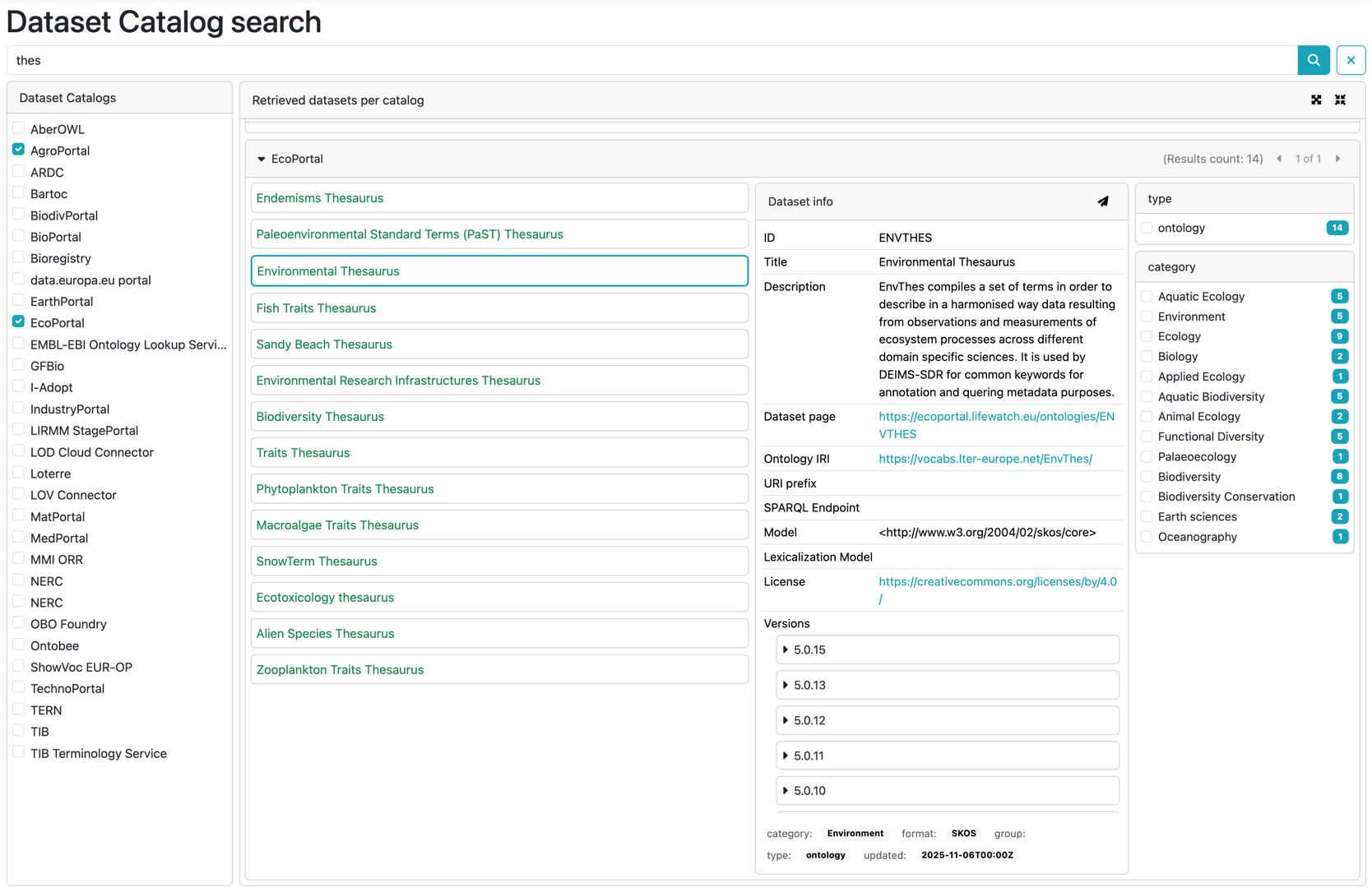
When the catalog is expanded, each result item is shown with its main information, such as title or description (if present). Users can scroll through the retrieved datasets and select one to view additional details. This modular view allows users to expand only the catalogs they are interested in, keeping others collapsed for clarity.
At the top of the results section, the Expand all and Collapse all buttons provide global controls to open or close all catalogs simultaneously.
When a dataset is selected, the lower part of the page displays the Dataset info section, which provides detailed metadata about the selected resource. The information typically includes:
- ID – the external identifier of the dataset within the catalog.
- Title – the official name of the dataset.
- Description – a summary explaining the dataset’s content and purpose.
- Dataset page – a hyperlink to the dataset’s page on the external catalog portal.
- Ontology IRI – the IRI of the ontology associated with the dataset.
- URI Prefix – the base namespace used for all resources defined within the dataset or ontology.
- SPARQL Endpoint – the URL of the SPARQL service endpoint that allows direct querying of the dataset.
- Model – the conceptual or schema model adopted by the dataset (for example, SKOS or OWL).
- Lexicalization Model – the linguistic or lexical model used to represent multilingual labels and terms (e.g., SKOS-XL).
- License – the dataset’s license, often with a link to the corresponding license page (e.g., Creative Commons).
- Versions – a list of available dataset versions, sorted by release number.
Note: All these details are retrieved directly from the external catalog, without any modification or enrichment by the system.
On the right side of the page, a panel displays the facets associated with the retrieved datasets. These facets represent additional metadata such as category, or type. They can be used to refine the search results by selecting or deselecting specific values.
The facet mechanism is not available for all dataset catalogs. Its availability depends on whether the corresponding connector and external service support this functionality. If the connector implements the facet-based filtering feature, the facet panel will be visible and interactive; otherwise, it will not be displayed.
For example, when querying catalogs such as EcoPortal, available facets may include categories like “Environment”, “Ecology”, “Biology”, or “Biodiversity”. Selecting one or more of these options dynamically updates the list of visible datasets, allowing users to focus on specific thematic domains.
This organized layout allows ShowVoc to present heterogeneous metadata from multiple repositories in a coherent and user-friendly way, facilitating exploration and comparison of datasets across catalogs.
Dataset Contribution Request
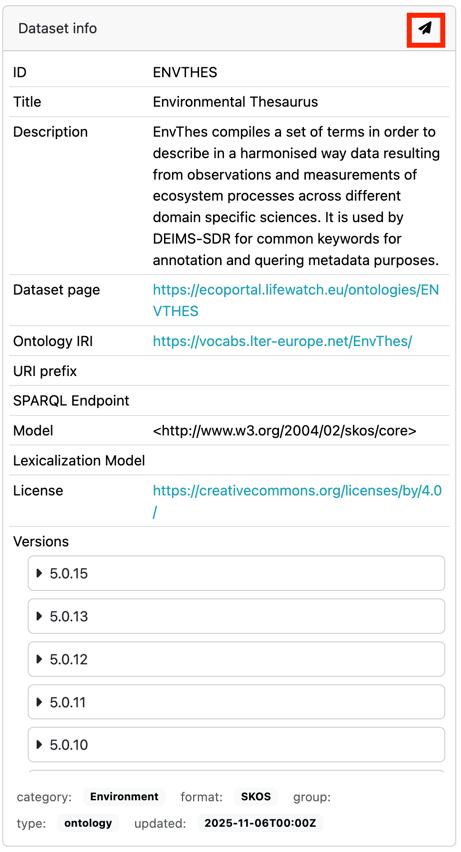
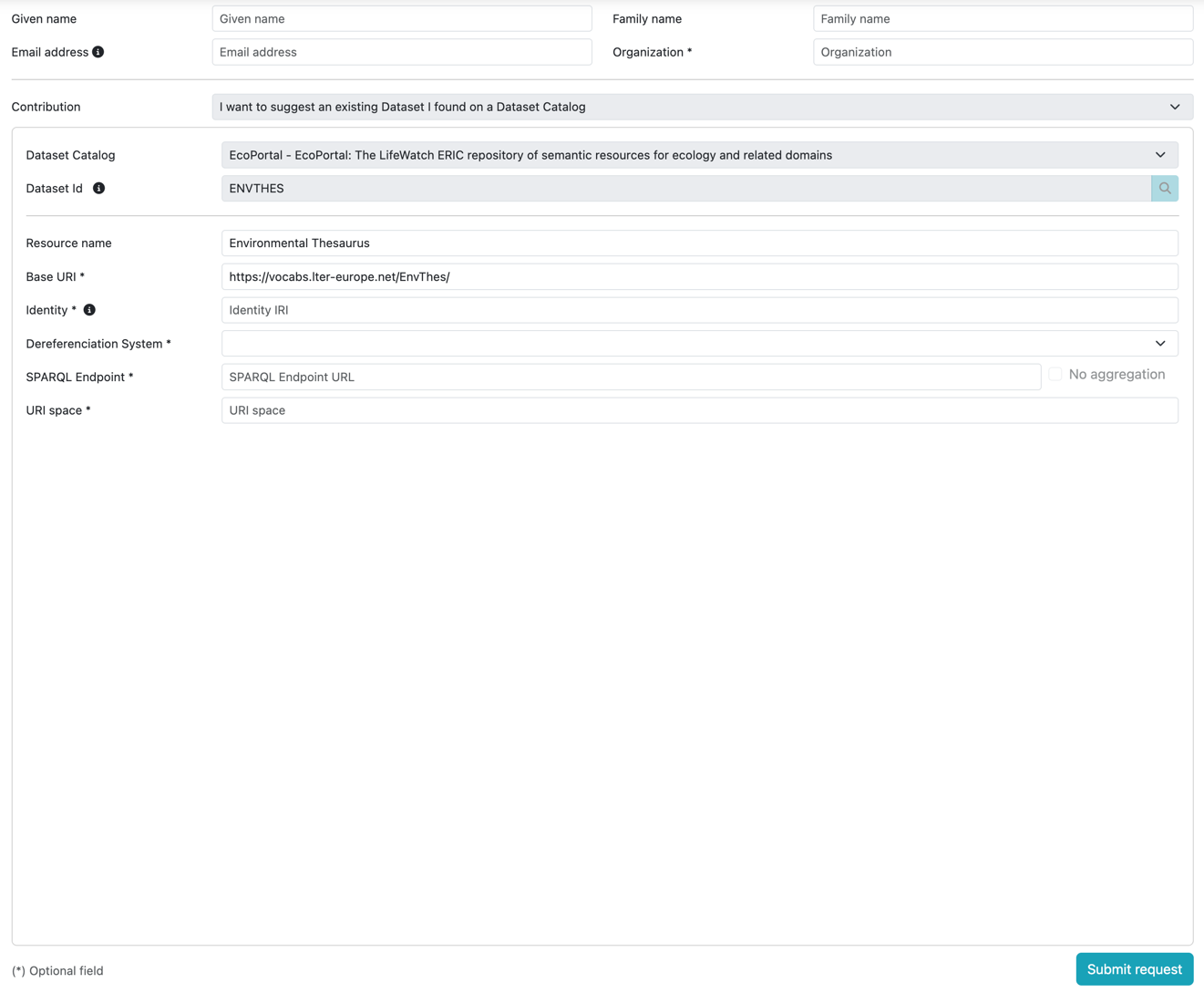
At the top of the Dataset info section, a button represented by a paper plane icon is available. This icon corresponds to the “Request to add this Dataset” functionality, which allows users to suggest the inclusion of a dataset retrieved from an external catalog into the ShowVoc managed repositories.
When the user clicks this icon, a confirmation dialog appears with the message: “Do you want to request the addition of this dataset from the Dataset Catalog?”. By clicking "Yes", the user is redirected to a dedicated request submission page where further details about the dataset can be reviewed or confirmed. The request is then forwarded to the system administrator for evaluation and potential approval.
If the user selects "No", the dialog simply closes and no action is performed.
This feature provides a controlled mechanism for users to propose the integration of relevant external datasets into the ShowVoc environment, ensuring that all new additions are reviewed and validated before becoming available within the system.
See screenshot below for reference.
Dataset Catalog Contribution Request
In the toolbar of the Dataset Catalogs page, a button represented by a paper icon is available. This button corresponds to the functionality “Suggest New Dataset Catalog” and allows users to propose the integration of a new external catalog into the ShowVoc environment.

When the user clicks this icon, the system opens Dataset Catalog Suggestion form dialog. This form enables the user to provide detailed information about the catalog to be added, including its underlying technology, public URL, and optional configuration notes that may help administrators during the integration process.
See screenshot below for reference.
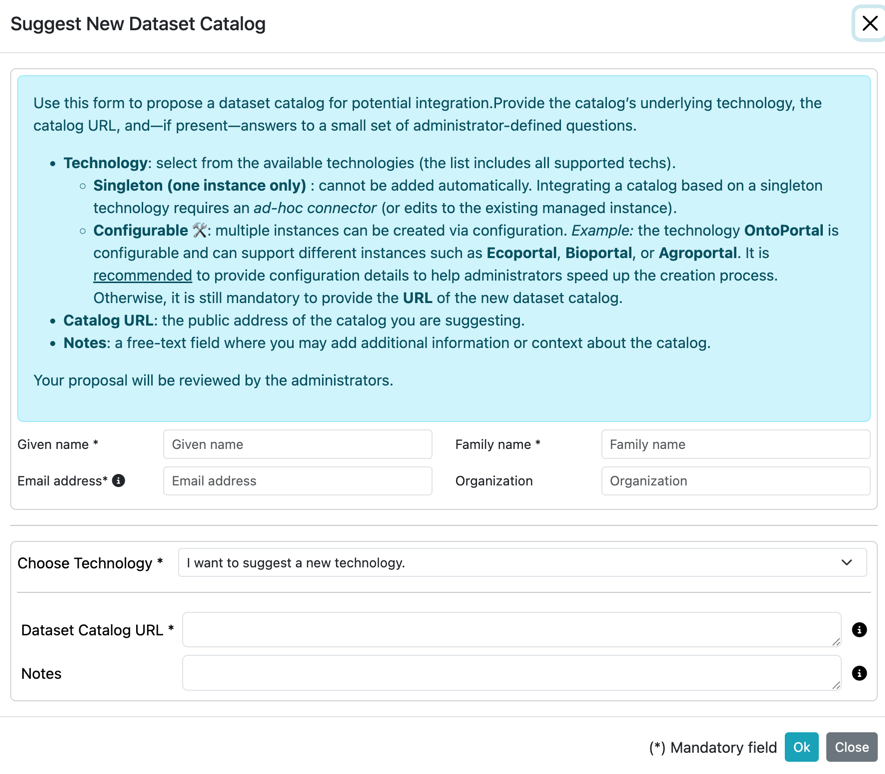
After completing all required fields, the user can submit the proposal by clicking the Ok button at the bottom of the form. The request is then forwarded to the ShowVoc administrators for review and possible integration into the system’s list of available dataset catalogs. The form also includes a Close button to cancel the operation and return to the main catalog list without submitting any information.
This functionality was introduced to allow users to notify system administrators about the existence of new dataset catalogs or to request the creation of a new ad-hoc connector for a specific catalog technology that is not yet supported . In this way, ShowVoc can evolve continuously by integrating emerging repositories and technologies through user contributions.
Discovered New Datasets

When the user clicks the notification icon with the numeric indicator, a dialog window opens displaying the list of newly discovered datasets for the selected catalog. These datasets have been identified during the latest crawling or synchronization process executed by the connector.
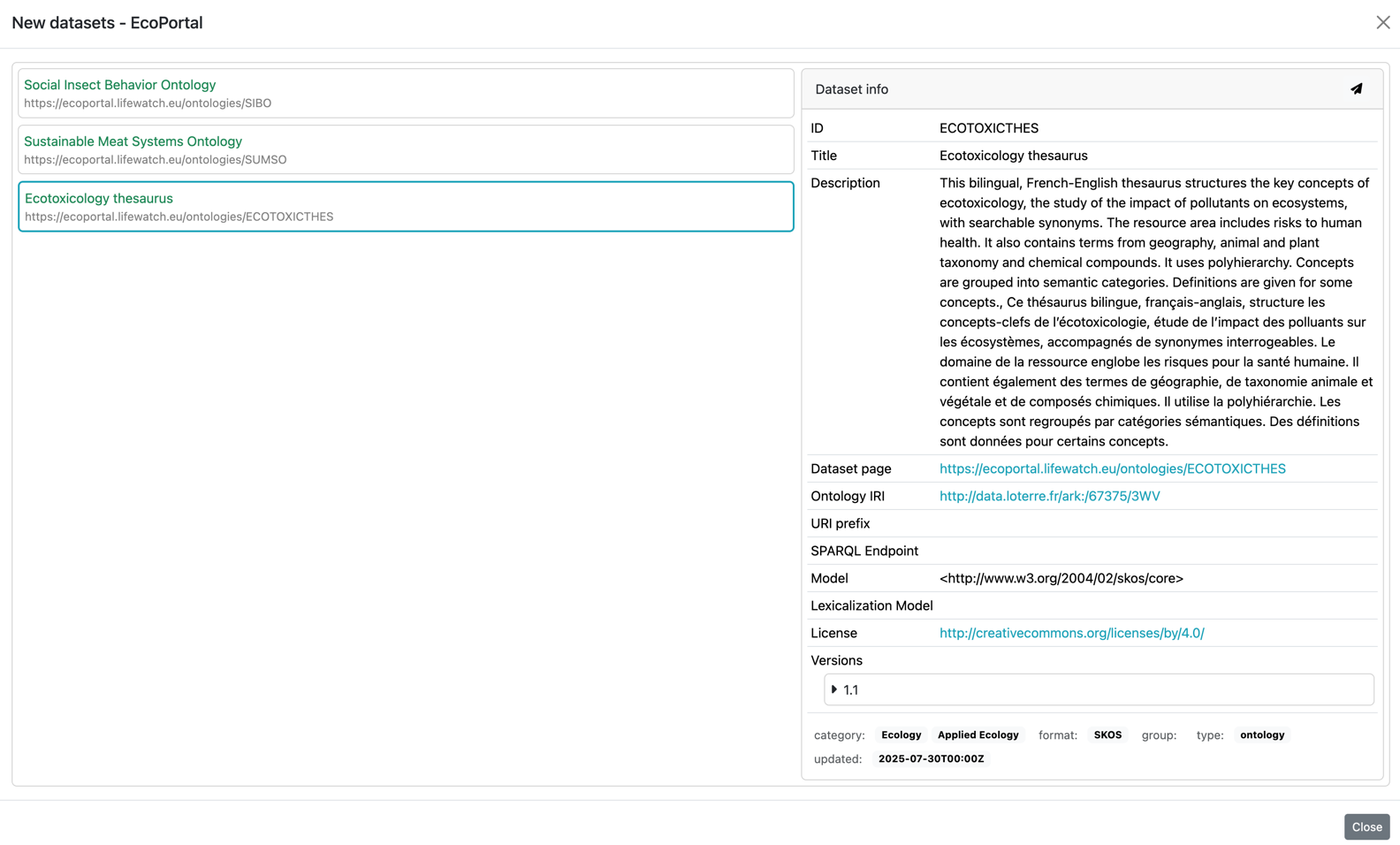
Each entry in the dialog shows the dataset’s title and a direct hyperlink to its page on the external catalog portal. User scope: Users (Visitor and Registered) – Users can review the newly discovered datasets and, if relevant, use the Request to add this Dataset functionality to suggest their inclusion within the ShowVoc repositories. User scope: SuperUser and Administrator users – Users can review the newly discovered datasets and, when appropriate, use the Dataset Management functionality to create or update datasets within the ShowVoc repositories.
Note:This notification icon appears only when the connector associated with the dataset catalog implements the Discovery capability. If the connector does not support incremental discovery or crawling of new datasets, the icon is not displayed.
Dataset Catalogs management
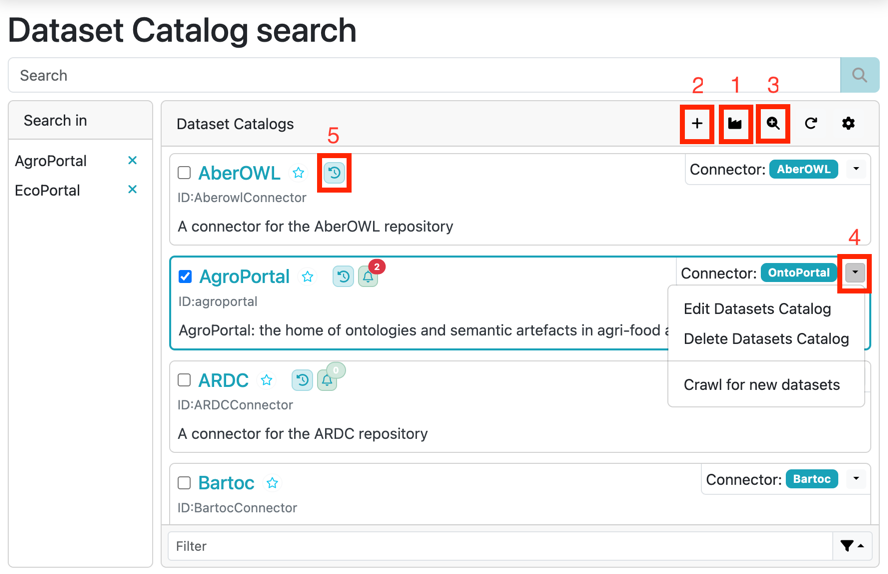
- Bootstrap factory – restores the built-in dataset catalog connectors provided by ShowVoc.
- Create dataset catalog – allows administrators to add a new dataset catalog to the system.
- Discovery – New Dataset Crawling – starts the crawling process across all configured catalogs to detect newly published datasets.
- Edit / Delete dataset catalog and Discovery – New Dataset Crawling for a single catalog – allows administrators to modify or remove a specific catalog, or trigger crawling only for that catalog.
- Update Version Capability indicator – the icon shows whether the dataset catalog supports the update-version mechanism (see Datasets update).
Bootstrap factory
Allows administrators to restore the built-in dataset catalog connectors that are natively provided by ShowVoc. This function can be used to reinitialize the default configuration in case of accidental deletion or system reset.
Each time this operation is invoked, only the built-in dataset catalogs that are not already present in the list are inserted. Existing catalogs remain unchanged.
Management
Allows administrators to add new dataset catalogs, modify existing ones, or remove obsolete entries. These operations allow full control over the list of available catalogs integrated within the ShowVoc environment.
Create
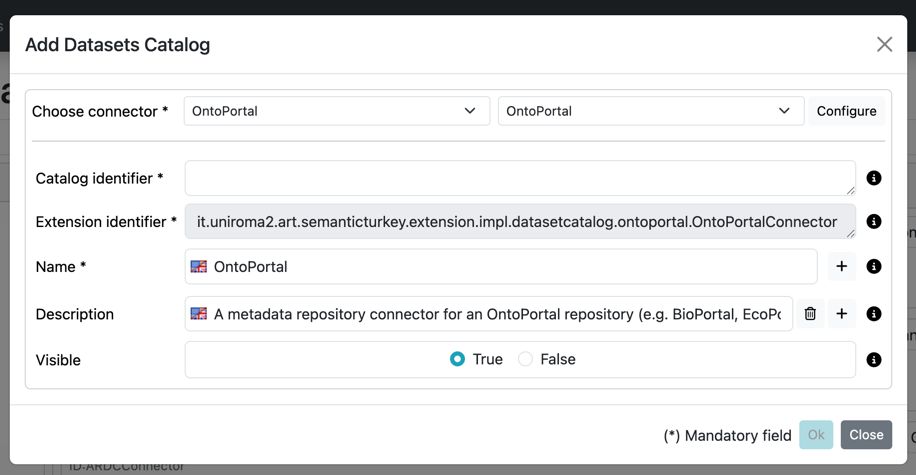
When clicking the Add Dataset Catalog button, ShowVoc opens a dialog that allows administrators to create a new dataset catalog entry. This interface includes all the necessary fields to define how the catalog should be identified, described, configured, and connected to its external service.
At the top of the dialog, the administrator must select the connector technology to be used from the Choose connector dropdown menu. The available options correspond to the connector types installed in the system (e.g., FAIRsharing, MOD, OLS, OntoPortal, ShowVoc).
After selecting a connector type, the Configure button becomes available. This button is shown only for connector types whose Nature is classified as Configurable. These connectors support multiple instances of the same underlying technology and therefore require specific configuration parameters. For connectors of type Singleton, which are designed for a single dedicated catalog implementation, the Configure button is not displayed because no additional configuration is required or allowed.
Clicking the Configure button opens a secondary dialog containing the configuration parameters required by the selected connector. Each configurable connector may expose different fields depending on its underlying technology or API. For example, the OntoPortalConnector requires the settings shown below:
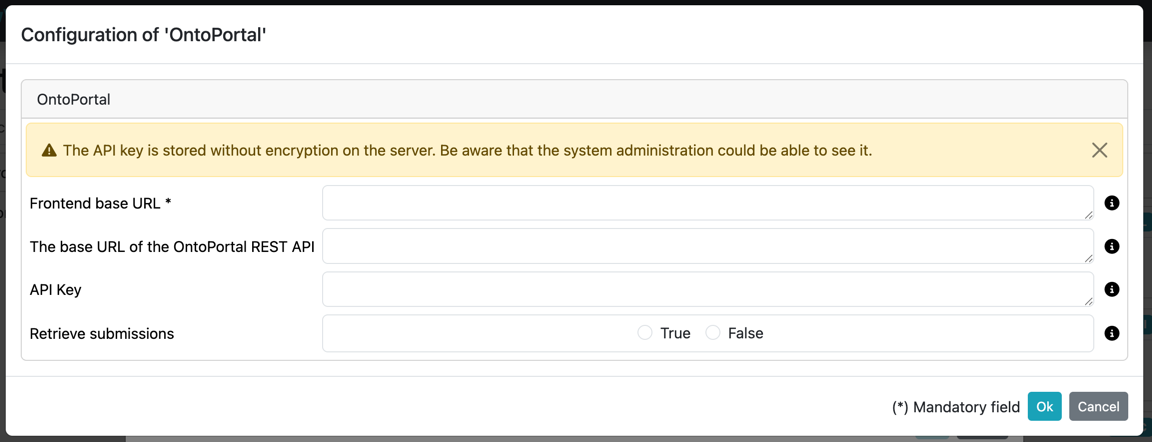
- Frontend base URL * – the public URL of the target OntoPortal instance (e.g., BioPortal, EcoPortal, AgroPortal). Used to generate links to dataset pages.
- Base URL of the OntoPortal REST API * – the root endpoint used by ShowVoc to perform queries and retrieve metadata.
- API Key – an optional access key required by some OntoPortal installations. A system note informs the user that keys are stored unencrypted on the server.
- Retrieve submissions – a toggle determining whether ShowVoc should retrieve submission records from the external OntoPortal instance.
All required fields must be correctly filled to allow the catalog to communicate with the external service. Missing or incomplete configuration will prevent the catalog from functioning properly.
Below the connector selection area, the main form presents the following fields:
- Catalog identifier * – a mandatory unique identifier for the catalog within ShowVoc.
- Extension identifier * – a technical field automatically populated with the fully qualified name of the connector implementation class. This value identifies which connector extension will be used and should not be modified.
- Name * – the human-readable label of the catalog. Supports multilingual input through language selectors.
- Description – an optional textual description of the catalog. Also multilingual, with add/remove controls.
- Visible – determines whether the catalog will appear in the Dataset Catalogs page (True / False).
At the bottom of the dialog, two action buttons are available:
- Ok – saves the new dataset catalog and adds it to the system.
- Close – closes the dialog without creating or modifying any catalog.
The secondary configuration dialog is connector-specific. Each connector exposes its own parameters, which must be provided to ensure proper communication with the target external catalog. For example:
- FAIRsharingConnector – requires username and password to obtain an authorization token.
- OntoPortalConnector – typically requires the REST API base URL and optional API key.
- OLSConnector – may require a specific service endpoint or versioning options.
All mandatory fields are marked accordingly. After entering the configuration parameters, the user may confirm with Ok or cancel the operation with the Cancel button.
Once the connector configuration and the main catalog information are correctly provided, the dataset catalog is created and immediately becomes available in the Dataset Catalogs page.
Edit
The Edit Dataset Catalog action allows administrators to modify the configuration of an existing dataset catalog. When the edit button is selected, the system opens the same dialog used for catalog creation, pre-filled with the catalog’s current settings. Administrators can update fields such as the catalog name, description, visibility, connector type, and nature. For configurable connectors, the Configure button is also available, enabling changes to the technical parameters (e.g., API URLs, keys, or other connector-specific options).
After applying the desired updates, clicking Ok saves the changes and immediately updates the catalog definition in the system. Selecting Close dismisses the dialog without applying any modification.
Delete
The Delete Dataset Catalog action allows administrators to remove an existing catalog from the system. When the delete button is selected, a confirmation dialog is displayed to prevent accidental removal. Once confirmed, the catalog is permanently deleted from the list.
Built-in catalogs that are removed can be restored at any time using the Bootstrap factory Dataset Catalogs functionality, which reinstalls all default factory connectors.
Discovery – New Dataset Crawling
The Crawl for new datasets button available in the Dataset Catalogs toolbar allows administrators to start a global crawling process to detect newly added datasets across all catalogs that support the Discovery new datasets capability. When this button is selected, the system opens a confirmation dialog informing the user that the operation will run on every compatible catalog.
When hovering over the global crawl button, a tooltip appears showing the timestamp of the most recent crawl execution. This provides administrators with immediate feedback about the freshness of the data and whether a new crawl might be necessary.
Once confirmed, ShowVoc automatically triggers the discovery mechanism on each catalog whose connector implements the discovery capability. Catalogs that do not support this functionality are skipped, since they cannot provide incremental information about newly added datasets.
In addition to the global crawl, each individual catalog that supports dataset discovery also exposes its own Crawl for new datasets action within the catalog card. Using this option, administrators may trigger the crawl on a single catalog independently, without affecting the others.
After the crawling process completes, catalogs for which new datasets have been detected display a notification icon with a numeric indicator. Hovering over this icon displays the timestamp of the last successful discovery for that specific catalog, while the numeric badge indicates the number of newly identified datasets.
Clicking the notification icon opens the Discovered New Datasets dialog, listing all newly found resources and providing direct links to the corresponding dataset pages.
Datasets management
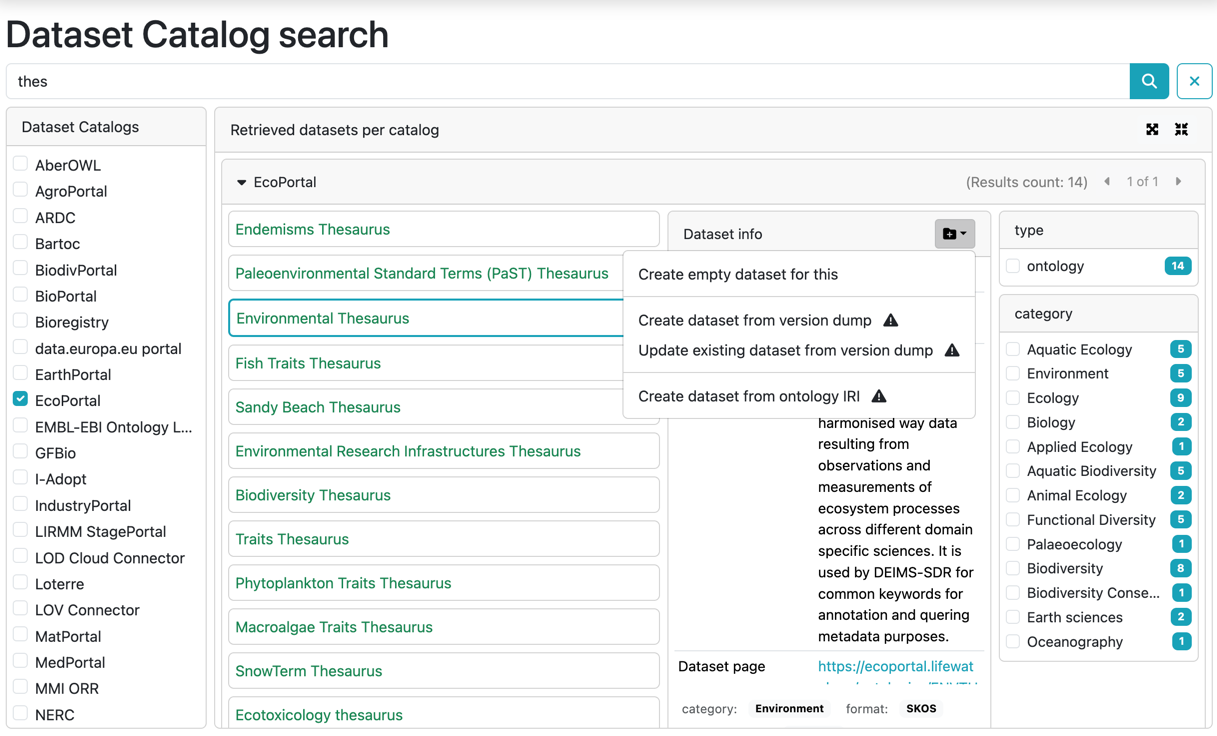
When a dataset is selected from the search results, the Dataset info panel displays the Dataset Management menu. This menu is available only to SuperUsers and Administrator users and provides several actions for creating or updating internal ShowVoc datasets based on the selected external resource.
The available operations are:
- Create empty dataset – opens the internal dataset creation dialog and pre-fills the metadata using the information retrieved from the external catalog (such as title, description, ontology IRI, and other available fields). No data dump is imported: the dataset is created empty, allowing the user to refine or extend the project manually after creation.
- Create dataset from version dump – this option appears only if the selected dataset exposes one or more downloadable versions. When selected, a dialog is shown where the user chooses which version dump to import. ShowVoc then creates a new internal dataset and preloads its content from the selected dump. A warning icon next to the option indicates that this preload step may take time, depending on the size of the dump and the responsiveness of the external catalog.
-
Update existing dataset from version dump – this option is also displayed only when
downloadable versions are available for the selected dataset.
Unlike the previous action, this one updates an existing dataset already present in ShowVoc.
A dialog appears where the user selects:
- the internal dataset to update, and
- the external version dump to use for the update.
- Create dataset from ontology IRI – creates a new internal dataset in ShowVoc by downloading and importing the ontology directly from the provided ontology IRI. This option is available even when no version dumps are exposed by the external catalog.
These actions provide flexible ways to initialize or update datasets inside ShowVoc, depending on: whether the external catalog exposes metadata only, downloadable version dumps, or a resolvable ontology IRI.
Create dataset from version dump
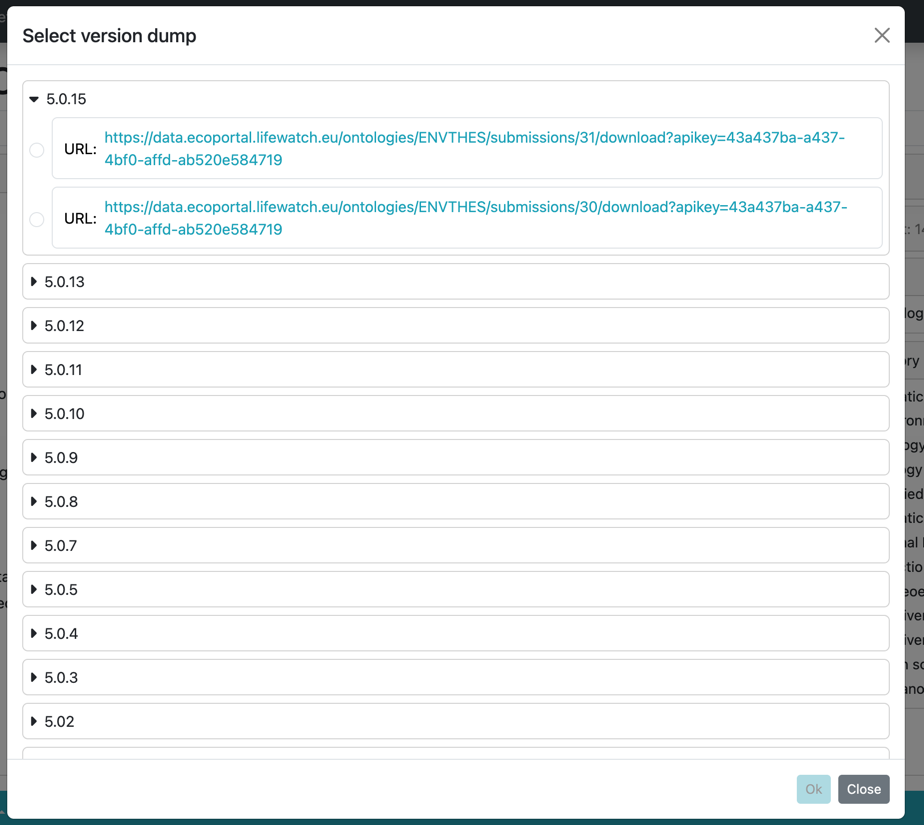
When the user selects the action Create dataset from version dump, ShowVoc may open a dedicated selection dialog that allows the user to choose which data dump to import from the external catalog. This dialog appears only when the selected dataset exposes multiple downloadable dumps for its versions. The structure and granularity of these dumps depend entirely on how the external catalog manages dataset versioning.
Some catalogs provide a single dump per version, while others may expose multiple files for the same version (for example: full dump, ontology-only dump, subsets, module-based dumps, or RDF exports in different serialization formats). The dialog lists all available dumps, each with its corresponding label or format, allowing the user to choose the most appropriate one for creating the new internal dataset.
If there is only one available dump (even if the dataset has multiple versions), the dialog is not displayed. In this case, ShowVoc automatically uses the only available dump and proceeds directly with the dataset creation workflow.
After the user selects the desired data dump and confirms the operation by clicking Ok, ShowVoc automatically opens the Create Dataset form. This form is pre-filled with all metadata retrieved from the external catalog and, at the same time, the selected data dump is already preloaded into the new dataset project.
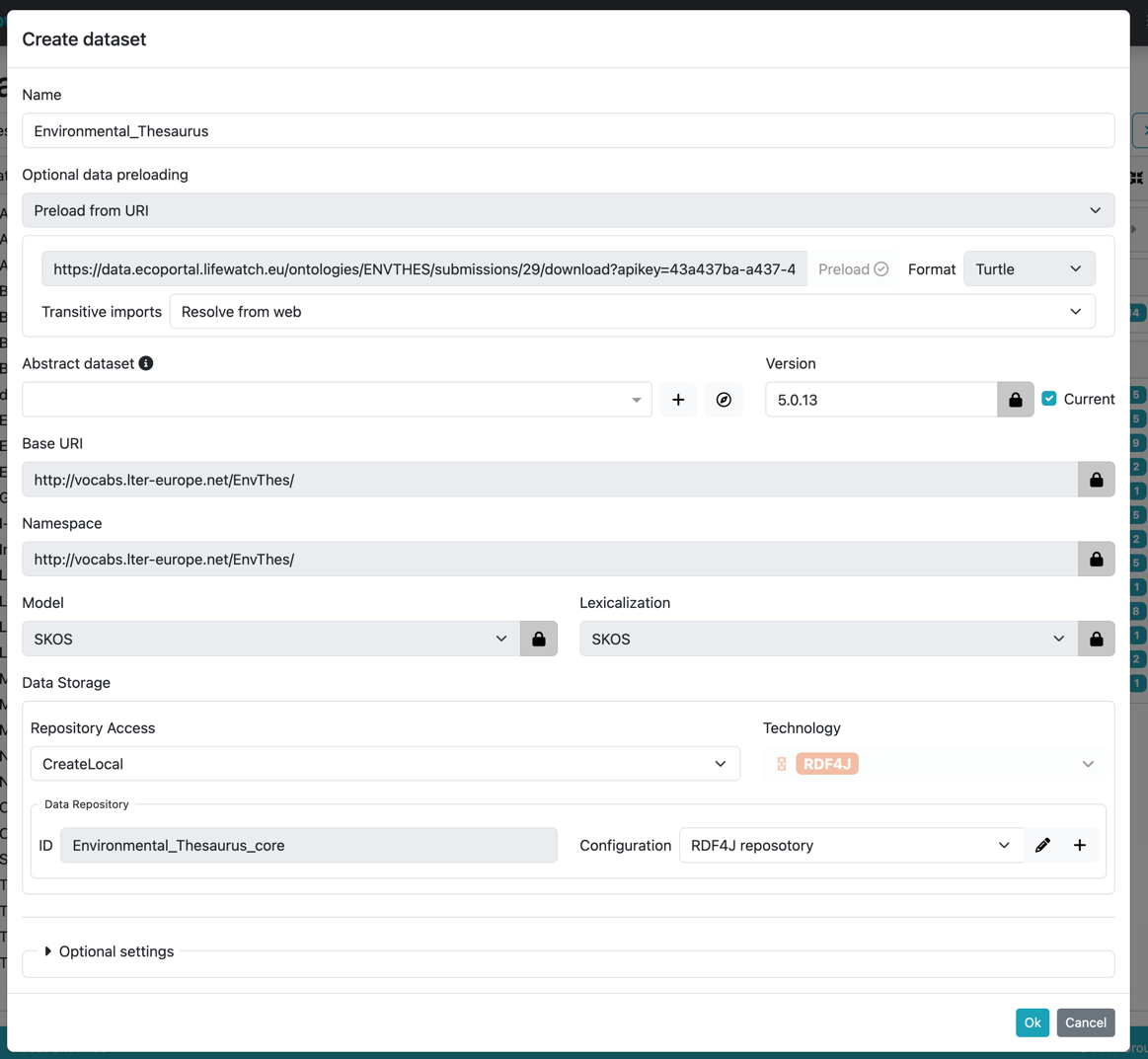
The form displays the main dataset information such as title, description, ontology IRI, URI prefix, license, and any additional metadata available from the external catalog. These values are inserted automatically to ensure consistency between the external source and the new ShowVoc dataset.
In addition to the metadata, the RDF content of the selected dump has already been imported during the preload step that follows the user’s confirmation. This means that the dataset is created with its content fully initialized, and the user does not need to perform any additional manual import operations.
At this stage, the user may review or adjust the automatically populated metadata fields before completing the creation of the dataset. Once all information is validated, clicking the final Create button will store the new dataset as an internal project within ShowVoc.
This workflow ensures a streamlined creation process, allowing users to quickly initialize a fully loaded dataset in ShowVoc based on the version dumps provided by the external catalog.
Update existing dataset from version dump
When the user selects the action Update existing dataset from version dump, ShowVoc starts a two-step workflow that allows updating an internal dataset with a new version retrieved from the external catalog. This operation is available only if the external dataset exposes one or more downloadable dumps.
As a first step, ShowVoc displays a dialog listing all available versions associated with the selected external dataset. Depending on how the catalog manages versioning, multiple dumps may exist for the same version (for example: full dump, modular dump, ontology dump, or different serialization formats). The user must select which dump should be used for updating the internal dataset.
If the dataset exposes only one available dump, this dialog is not shown. ShowVoc automatically selects the only available dump and proceeds directly to the second step.
After the user confirms the dump to use, the system displays a second dialog where the user must choose the internal dataset to update.
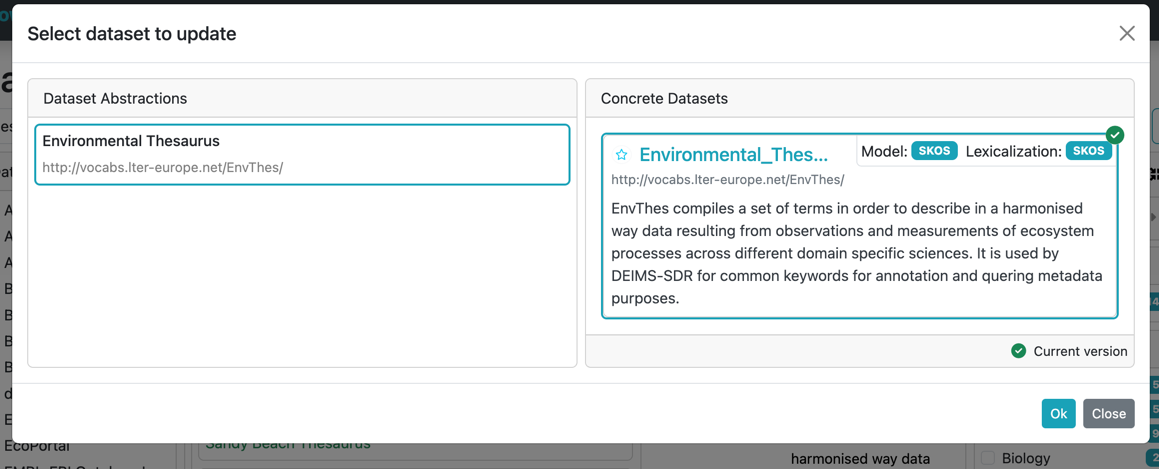
This dialog lists all datasets currently present in ShowVoc that are compatible with the update operation (for example, datasets sharing the same ontology IRI or related metadata). The user selects the target dataset from the list and confirms the operation.
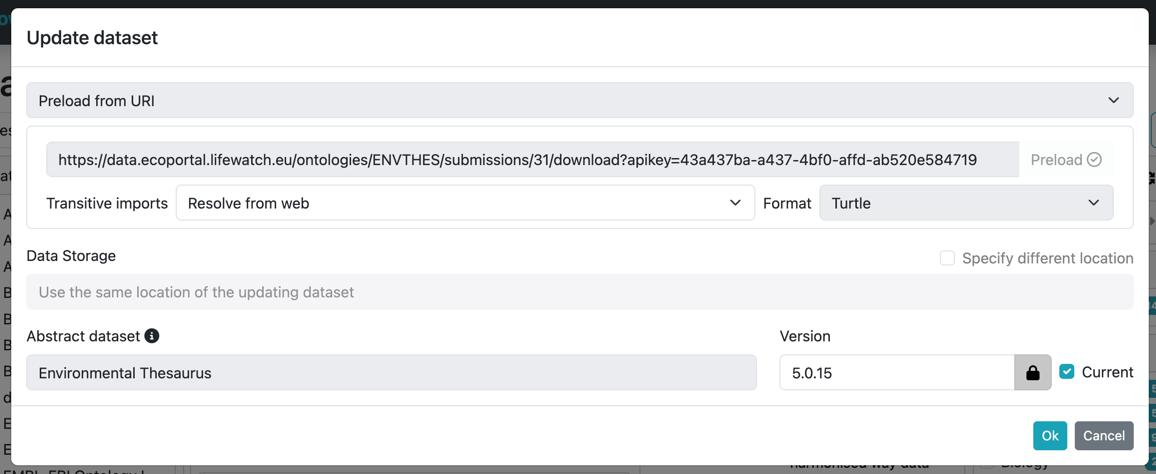
After selecting both the external version dump and the internal dataset to update, ShowVoc displays the Update Dataset dialog. This dialog provides a final confirmation step and summarizes the information that will be used during the update process.
The dialog shows the key metadata of the update operation, including:
- the name of the internal dataset that will be updated;
- the version or dump selected from the external catalog;
- the ontology IRI and any other identifiers used to validate the compatibility between the source dump and the internal dataset;
- additional metadata retrieved from the external catalog that may influence the update (e.g., version label, release notes, download format).
This summary allows the user to verify that the correct dataset and the correct version have been selected before proceeding. If everything is correct, the user confirms the update by clicking Ok, which triggers the import and replacement process. If the user selects Cancel, the update operation is aborted and no changes are applied.
Once confirmed, ShowVoc downloads the selected dump and updates the internal dataset accordingly. As in the creation workflow, this operation may take time depending on the size of the dataset and the performance of the external catalog.
When the process completes, the internal dataset is updated to reflect the new version while preserving its existing project configuration and metadata within ShowVoc.